● Label Cropper9 min read
How to Crop Amazon, Flipkart and Meesho Shipping Labels for a 4×6 Thermal Printer
Crop Amazon, Flipkart and Meesho A4 label PDFs into 4×6 thermal labels: step-by-step, the printer settings that stop tiny or cut-off labels, and quick fixes.
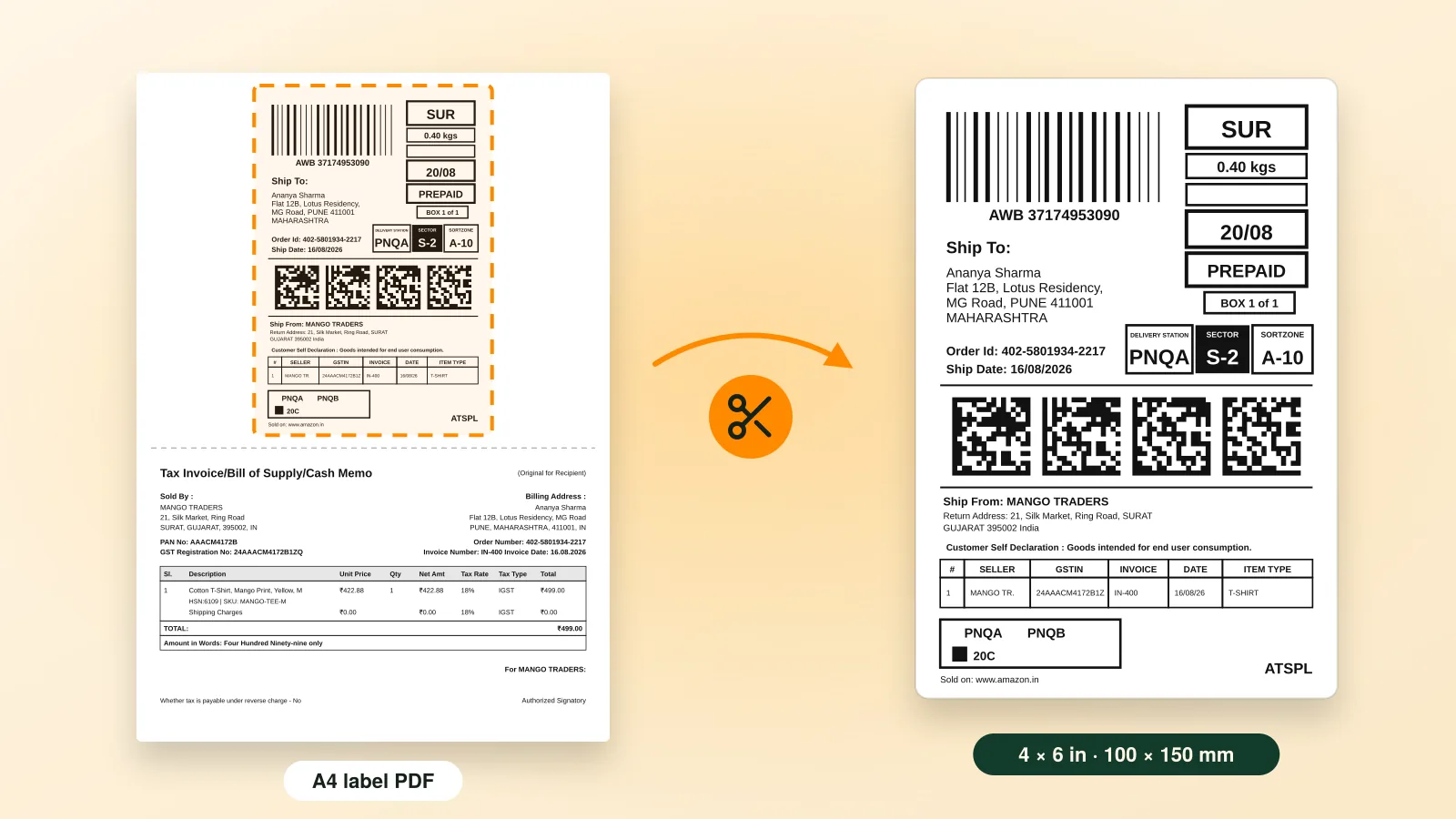
Amazon, Flipkart and Meesho give you shipping labels as A4 PDFs, but a thermal printer prints on 4×6 inch (100×150 mm) stickers. To print them properly you crop each label out of its A4 page and print it at 100% on a 4×6 paper size. You can do that by hand in a PDF editor, or for the whole batch at once with a label cropper. This guide covers both, plus the printer settings that stop labels printing tiny or cut off.
Key takeaways
- Marketplace labels arrive on A4 pages; a thermal printer needs each label on its own 4×6 in (100×150 mm) page.
- Cropping by hand works for a few orders, but gets slow and error-prone once you ship dozens a day.
- Print at 100% (Actual size) on a 4×6 paper size. “Fit to page” is the usual reason labels come out small or cut off.
- Ecommango Label Cropper crops Amazon, Flipkart and Meesho PDFs in your browser and can group labels by SKU and add an order summary.
Why don’t Amazon, Flipkart and Meesho labels fit a thermal printer?
Seller panels produce labels for office printers, so the PDF is an A4 page (210 × 297 mm) (opens in a new tab). A thermal label printer (opens in a new tab) prints on a roll or stack of 4×6 inch labels, about 100 × 150 mm, which is less than a quarter of an A4 page.
4×6 is the usual shipping label size: Amazon’s own shipping API lists 6 × 4 inches as its label size for India (opens in a new tab), alongside smaller options.
The layouts differ by marketplace, too. Amazon’s label fills the page, while Flipkart and Meesho put the shipping label and the tax invoice on the same A4 sheet. Send that page straight to a thermal printer and the driver either shrinks the whole sheet onto one sticker, leaving a barcode too small to scan, or prints the top of the page and drops the rest.
What a correctly cropped label looks like
- Only the shipping label: no invoice, no blank margin from the A4 page.
- The barcode and AWB number printed full width, with sharp edges a courier scanner can read.
- One label per 4×6 page, printed at 100% scale, so nothing is shrunk or clipped.
What do you need to print 4×6 shipping labels?
You need a thermal label printer that takes 4×6 inch labels, a roll or stack of 4×6 (100×150 mm) labels, and the day’s label PDFs from your seller panels. Direct thermal labels need no ink or ribbon.
- A thermal label printer that takes 4×6 inch labels, with its driver installed on your computer.
- 4×6 (100×150 mm) labels. Direct thermal labels need no ink or ribbon; they darken with heat (how thermal printing works (opens in a new tab)).
- The day’s label PDFs, downloaded from Amazon Seller Central (opens in a new tab), the Flipkart Seller Hub (opens in a new tab) or the Meesho Supplier Panel (opens in a new tab).
How do you crop shipping labels with a label cropper?
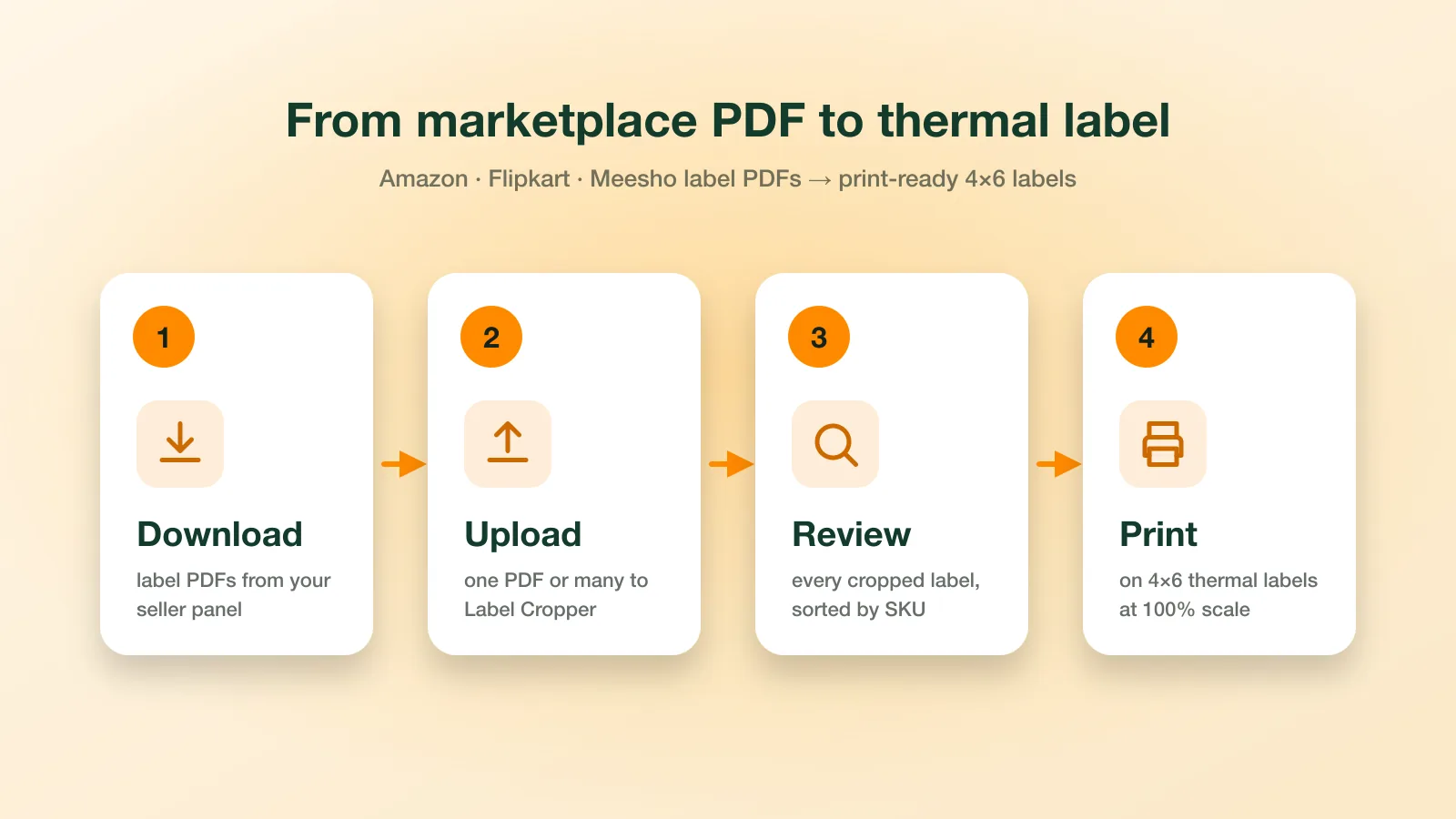
Download the day’s label PDFs, drop them into Ecommango Label Cropper, choose the print order and print the result at 100% on 4×6 labels. It finds every label on each page, trims it to its border and sets the invoices aside in one pass.
Here is the whole job, start to finish.
Step 1: Download your label PDFs
In each seller panel, generate labels for the orders you are shipping today and download the PDFs. Keep the files as they are: there is no need to split, rotate or rename them.
Step 2: Add them to Label Cropper
Open Label Cropper and drop in your PDFs, one file or many (PDF only, up to 25 MB each). It finds every label on each page, whether the sheet holds 1, 2, 4 or 8 of them in portrait or landscape, trims each one to its border and sets the invoices aside so they never waste a sticker.
The files never leave your computer: Label Cropper reads and crops them inside your browser, and they are not uploaded to Ecommango’s servers (see our Privacy Policy).
Step 3: Choose the order your labels print in
A few settings decide how the batch comes out:
- Sort by quantity, ascending or descending, so multi-unit orders come together.
- Group identical SKUs together, so the packing desk picks each product once for all of its orders.
- Number the pages (“3/4”), so a dropped stack goes back in order.
- Add a summary page at the end: total orders and quantities by SKU, which doubles as a pick list.
Options that only apply to one marketplace appear once a file from that marketplace has been read.
Step 4: Review, then print
Preview the cropped labels and fix the odd one before you print. Then download the PDF or print it directly, on a 4×6 paper size at 100% scale. The next section covers those settings.
Label Cropper is free to use. After your first few PDFs it asks for your details once (name, email, phone and the marketplaces you sell on); there is no payment and no card.
What printer settings stop 4×6 labels printing small?
Set the paper size to 4×6 in (100×150 mm), the scale to 100% (Actual size) and the margins to none. Most label printing problems come from the print dialog, not the label, so save these as your printer’s defaults.
| Setting | Use | Why |
|---|---|---|
| Paper size | 4×6 in (100×150 mm) | Matches the sticker, so the page is not shrunk to fit. |
| Scale | 100% / Actual size | “Fit to page” shrinks the label and can make the barcode unreadable. |
| Orientation | Portrait | A cropped 4×6 label is already upright. |
| Margins | None or minimum | Large margins push the barcode off the edge. |
| Darkness / density | Medium; raise if faint | Too light and scanners miss bars; too dark and bars blur together. |
| Print speed | Lower if smudged | Slower printing gives the print head time to heat each line evenly. |
Make 4×6 the default paper size
In the printer’s driver settings (Printing Preferences on Windows, or a custom paper size in the print dialog on a Mac), add a 100 × 150 mm paper size and make it the default. Then every label prints at the right size without you changing the dialog each time.
Calibrate after loading a new roll
Thermal printers use a sensor to find the gap between labels. After you load a new roll or switch label stock, run your printer’s calibration routine (its manual names the button or menu). If you skip it, prints slowly drift across two stickers.
Is it faster to crop labels by hand or with a label cropper?
A label cropper is faster once you ship more than a handful of orders: it crops the whole batch in one pass, while cropping by hand in a PDF editor takes a minute or more per label. For five orders a day cropping by hand is fine; for fifty it is an hour, and every manual crop is a chance to clip a barcode.
To crop by hand: open the PDF, crop the page to the label area, set the page size to 4×6 and save.
| By hand (PDF editor) | Label cropper | |
|---|---|---|
| Time per batch | A minute or more per label | One pass for the whole batch |
| Accuracy | Easy to clip the barcode or address | Cropped to the label’s own border |
| Invoices | Removed page by page | Set aside automatically |
| Print order | Whatever order the PDF was in | Sorted by quantity, SKUs grouped |
| Pick list | Written separately | Summary page at the end of the PDF |
Avoid screenshots. A screenshot turns the barcode into a low-resolution image, and a blurry barcode is the kind that fails to scan at pickup.
Why is my shipping label printing small, cut off or blank?
Check three things first: the PDF page is 4×6, the printer’s paper size is 4×6, and the scale is 100%. If those are right, find your symptom below; each one has its cause and fix.
The label prints small in one corner
The print dialog is scaling an A4 page onto the sticker. Crop the label first, then print on a 4×6 paper size at 100% scale.
Part of the barcode is cut off
The page and the paper size don’t match, or the margins are too wide. Check that the PDF page is 4×6, the printer paper size is 4×6 and the margins are set to none.
Blank labels come out between prints
The printer has lost track of the gaps between labels. Run its calibration routine, and check that the media type in the driver matches your labels (gap or continuous).
The print is faint or patchy
Raise the darkness a step, lower the print speed and clean the print head. Also check that your labels are direct thermal: thermal transfer labels need a ribbon and print nothing without one.
Labels print in a random order
Sort the batch before printing: group identical SKUs and sort by quantity, so the stack matches the way your packing desk picks.
How can I speed up my packing desk?
Crop and print in batches at fixed times, and group identical SKUs so each product is picked once for all its orders. Use the summary page as your pick list and keep a calibrated spare roll ready before pickup.
- Batch at fixed times. Crop and print once or twice a day instead of label by label.
- Group identical SKUs so each product is picked from the shelf once for all its orders.
- Use the summary page as your pick list: total quantity per SKU, at the end of the PDF.
- Keep invoices separate and print them on plain paper if they go in the parcel.
- Keep a spare roll loaded and calibrated before the courier pickup rush.
If switching between three seller panels is the real bottleneck, read our guide to multi-channel order management. And if your ads bring in orders that lose money, see how to cut wasted Amazon Ads spend.
Frequently asked questions
What size is a shipping label for a thermal printer?
4×6 inches (about 100×150 mm). Amazon, Flipkart and Meesho labels all fit this size after you crop them from the A4 page.
Can I print Flipkart and Meesho labels on a thermal printer?
Yes. Crop the label from A4, then print 4×6 at 100%.
Why does my shipping label print too small?
Your printer is squeezing the full A4 page onto one sticker. Select 4×6 paper size and print at 100%, not Fit to page.
Is Ecommango Label Cropper free?
Yes. It is free. No card or payment, just your details once.
Are my label PDFs uploaded anywhere?
No. Everything happens inside your browser, on your device. Your files are never uploaded.
Do thermal label printers need ink?
No ink is needed. Direct thermal labels turn dark with heat. Only thermal transfer printers need a ribbon, so check your printer type.